
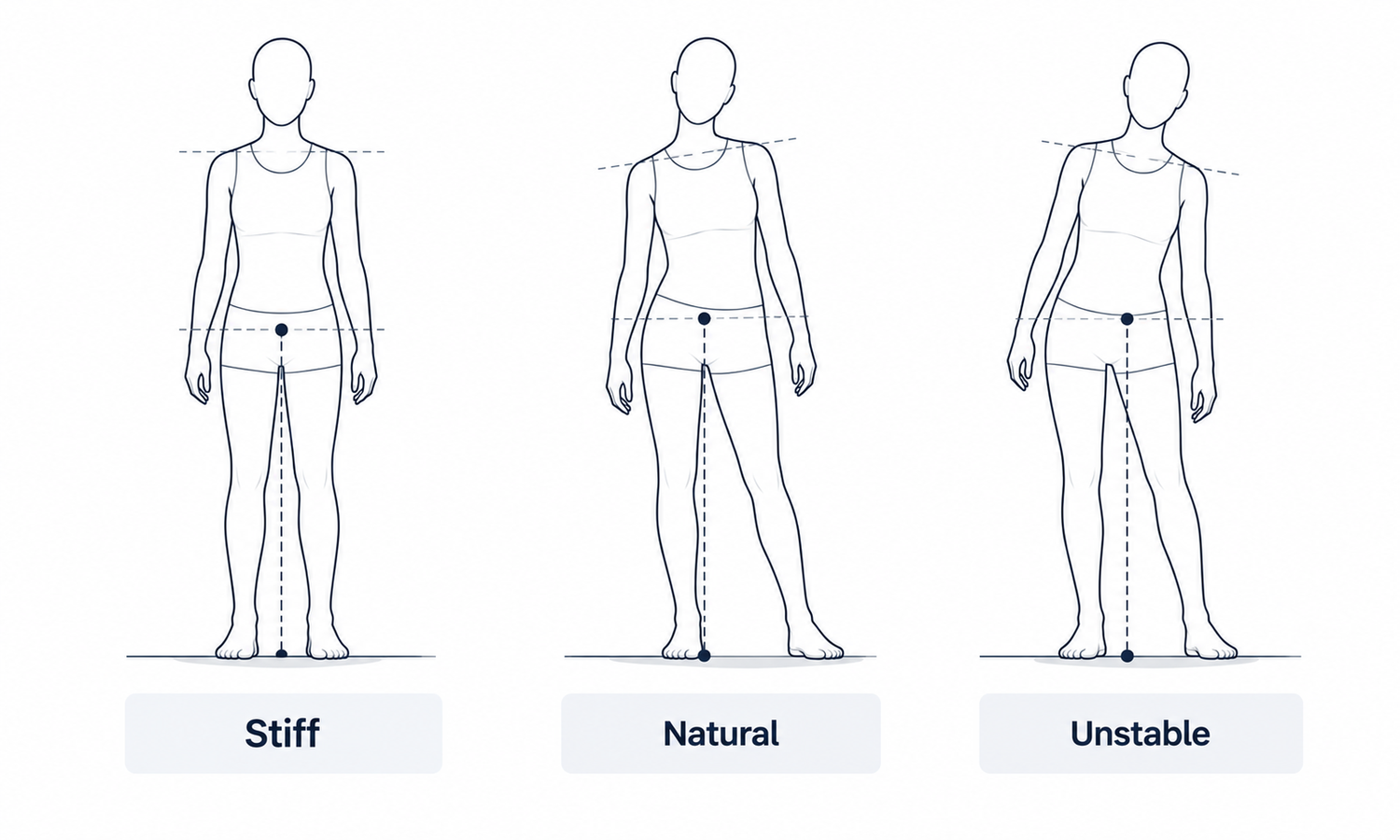
An AI pose editor lets you adjust how a generated model stands, sits or moves: shift the weight, bend an elbow, turn the head, lift a foot. Most of the time the result looks natural. Sometimes it does not, and the viewer cannot quite say why. The face is convincing, the garment is right, the lighting is consistent, and still something about the person looks off.
That reaction usually comes from physics. People are extremely good at judging whether a body could actually hold a position: whether it would balance, whether a joint could bend that far, whether a foot is really bearing weight. A pose that breaks those rules looks wrong long before anyone can name the problem, and on a product page that unease attaches itself to the garment.
This article explains why some poses look wrong before you know why, how balance and weight give poses away, what joints, proportions and contact add, how to check and fix poses in an AI pose editor and how to handle pose editing in practice.
| Signal | What looks wrong | Why viewers notice | How to fix it |
|---|---|---|---|
| Balance | The body could not stay upright in this position | Weight is not over the supporting foot | Shift the hips or choose a more grounded pose |
| Weight shift | Both legs look equally loaded in a relaxed stance | Real standing poses favor one leg | Let one hip drop slightly over the weight-bearing leg |
| Joint angles | An elbow, knee or wrist bends too far or the wrong way | Everyone knows how joints move | Reduce the angle or change the pose |
| Consistency between images | The same model's arms or legs look different lengths | Viewers compare images side by side | Compare with the approved pose and correct |
| Ground contact | Feet float, sink or turn unnaturally | Feet carry the whole body | Correct the feet or crop more thoughtfully |
| Contact with objects | A seated model does not rest on the seat | Surfaces take weight too | Adjust the contact or remove the prop |
Why Some Poses Look Wrong Before You Know Why
The eye reads posture as a whole. Before noticing details, a viewer registers whether a figure is stable, relaxed or strained. That judgment happens quickly and draws on a lifetime of watching people stand and move. It is also unforgiving. A pose that is only slightly impossible, with the weight a few degrees off or a knee a little too straight for a stride, reads as stiff, uncanny or awkward even to someone who could not explain the mechanics.
Generated poses are especially prone to these small impossibilities. An editor moves a limb to where it was asked to go, and the generator draws a body that reaches it, but nothing ensures that the whole body would stay balanced once the limb is there. The pose is assembled from positions rather than produced by a body obeying gravity.
For apparel imagery, the effect goes beyond the model. A shopper who senses that something is wrong with a picture tends to trust the whole picture less, including the garment. A natural pose is part of what lets the product be taken seriously.
Balance and Weight
Balance is the first thing to check, and the most common reason a pose looks wrong.
A standing body stays upright when its weight sits over its support. In a relaxed stance, that support is mostly one leg: the weight shifts onto it, the hip on that side rises slightly and the shoulders tilt a little the other way to compensate. A generated figure with its weight evenly on both legs, hips perfectly level and shoulders square can look like a mannequin rather than a person, even when every limb is in a plausible position.
The opposite error is worse. A figure leaning to one side without shifting its hips, or standing on one leg with its weight clearly outside the foot, looks as if it is about to fall. Viewers feel the imbalance even when they cannot say where it is.
Leaning against something changes the rules, because a wall, a railing or a chair takes part of the weight. A generated figure leaning on nothing, or appearing to lean on a surface it is not quite touching, reads as wrong immediately.
The fix is usually simple: bring the hips over the supporting foot, let one hip drop over the weight-bearing leg in a relaxed stance or choose a pose with a wider, more grounded base. For product imagery, a stable, relaxed standing pose is almost always easier to get right than a dramatic one.
Joints, Proportions and Contact
After balance, the details that give a pose away are mechanical.
-
Joint limits. Elbows and knees bend one way and only so far. Wrists and ankles have a limited range. A joint bent slightly past its limit, or twisted in a direction it cannot go, is one of the fastest ways to make a pose look wrong.
-
Consistency across images. When the same generated model appears in several poses across a product's images, the arms and legs should look the same length from one image to the next. A forearm that looks noticeably longer in one pose, or a leg that seems to change length, is noticed when images sit side by side. This is about the same model looking consistent, not about any particular build.
-
Ground contact. Feet should rest on the ground with the weight they carry: flat for a standing leg, lightly touching for a relaxed one. Feet that float above the floor, sink into it or point at angles the legs cannot produce all break the picture.
-
Contact with objects. A seated model should sit on the seat, with the thighs and hips pressed against it. A hand on a railing should rest on it. Contact that is almost but not quite there is more unsettling than no contact at all.
-
Head and gaze. The head should sit naturally on the neck, and the eyes should look in a direction the head's angle supports. A gaze that does not match the head turn looks strained.
Hands are the other well-known problem, with their many small joints and frequent overlaps. They should be checked at full size in every image, with a finger count, wherever they are visible.
Checking and Fixing Poses in an AI Pose Editor
Checking a pose works better as a routine than as a general impression.
Start with the silhouette. Look at the figure small, as a shape, and ask whether it would stand up. Balance problems are easier to see when detail is out of the way. Flipping the image horizontally can help too, because a fresh orientation makes the eye reassess the posture.
Then look at the feet, because everything above depends on them. Check that the weight-bearing foot is flat and under the body, and that the other foot is placed naturally.
Next, check the joints: elbows, knees, wrists and ankles, each within its normal range and bending the right way. Then check consistency by placing the image beside the model's approved pose or the product's other images and comparing limb lengths and proportions.
Finally, check contact: with the ground, with any seat or wall and with the garment itself, since hands on pockets or lapels affect how the garment reads.
When something is wrong, decide whether to adjust or to replace. A small correction to a foot, a hand or a joint angle can be made locally. A pose that is fundamentally unbalanced is usually quicker to replace with a more grounded one than to repair piece by piece. After any change, check the garment again, because every pose adjustment redraws the parts of the garment that moved.
Hold campaign and product images to slightly different standards. A campaign image can carry an expressive pose, a dramatic lean or a moment of movement, as long as the body still reads as physically possible. A product image has a different job: it shows the garment clearly and consistently across a category, and a pose that draws the eye to itself, even a plausible one, competes with the product. For product pages, the calm, well-balanced pose that nobody notices is usually the right one.
Editing Poses in Practice
In Lightchain AI (apparel AI), pose editing and correction use a few tools.
-
Model Studio sets and adjusts the model's pose, scene and angle, so a pose can be changed while the model stays the same.
-
When a foot, a hand or a joint needs a small correction in an otherwise good image, the area can be fixed locally, as described on the Partial Redraw page.
-
After a pose change, AI Virtual Try-On can place the garment on the model again from its flat-lay, so the garment is checked against a clean source.
For teams refining generated poses with precise, local corrections, Partial Redraw is the Lightchain AI solution built for that work.
Frequently Asked Questions
Why does a pose from an AI pose editor sometimes look wrong?
Usually because it breaks physical rules viewers sense instantly: the weight is not over the supporting foot, a joint bends too far or a foot does not really touch the ground. People judge whether a body could hold a position before they notice any detail.
What is the most common problem with generated poses?
Balance. Poses with weight evenly on both legs can look stiff, and poses leaning without a matching hip shift look as if they are about to fall.
How can a team check poses consistently?
Look at the silhouette first, then the feet, then the joints, then consistency with the model's approved pose, then contact with the ground, objects and the garment. Flipping the image horizontally can help reveal balance problems.
Should a wrong pose be fixed or replaced?
Fix small problems such as a foot, a hand or a joint angle locally. Replace a pose that is fundamentally unbalanced with a more grounded one, which is usually quicker.
Why check the garment after changing a pose?
Because every pose adjustment redraws the parts of the garment that moved. Compare the garment with its source again after any change.
Which poses are easiest to get right for product images?
Stable, relaxed standing poses with a clear weight-bearing leg, arms separated from the body and feet flat on the ground. Dramatic poses are better kept for campaign images.
How does Lightchain AI help fix poses that look wrong?
Model Studio adjusts the pose while keeping the model, and small problems with feet, hands or joints can be corrected locally without regenerating the whole image. Partial Redraw is the solution to use for those precise corrections.
In Closing
A generated pose can look wrong even when every part of it looks fine, because viewers judge physics before detail. An AI pose editor makes it easy to place limbs, and it is the whole body's balance, joint range, consistency and contact that decide whether the pose reads as real. Check the silhouette, the feet, the joints and the contact in a set order, fix small problems locally, replace poses that cannot balance and check the garment again after every change.
Start Here
If your team edits poses on generated models and wants them to look natural, Partial Redraw is the solution to use. It is built for precise, local refinement: you correct a foot, a hand or a joint in a defined area while the rest of the image stays as it is. Start with your current product poses, check each one using the routine above, and correct or replace the ones that do not balance.
**Explore Partial Redraw → **https://www.lightchainai.com/global/solutions/partialRedraw